 SN Dev Guard
Check a script
A real editor in the palette. It checks as you type and takes the table of current so fields are checked too.
Chrome extension for ServiceNow developers and admins
SN Dev Guard puts a status bar, a command palette, script checks and production warnings on every ServiceNow page. It works in your browser with your own login. There is no server behind it.
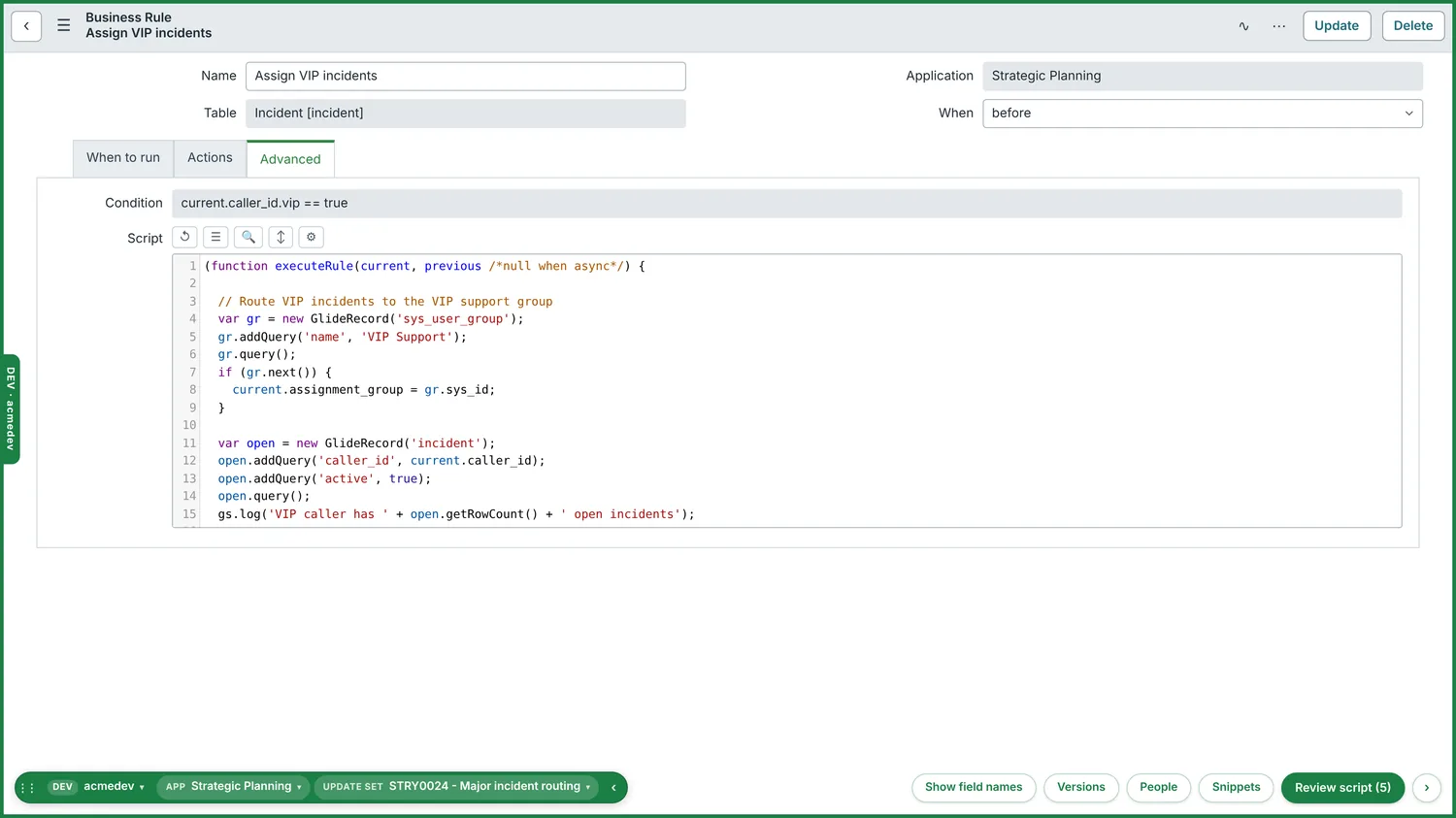
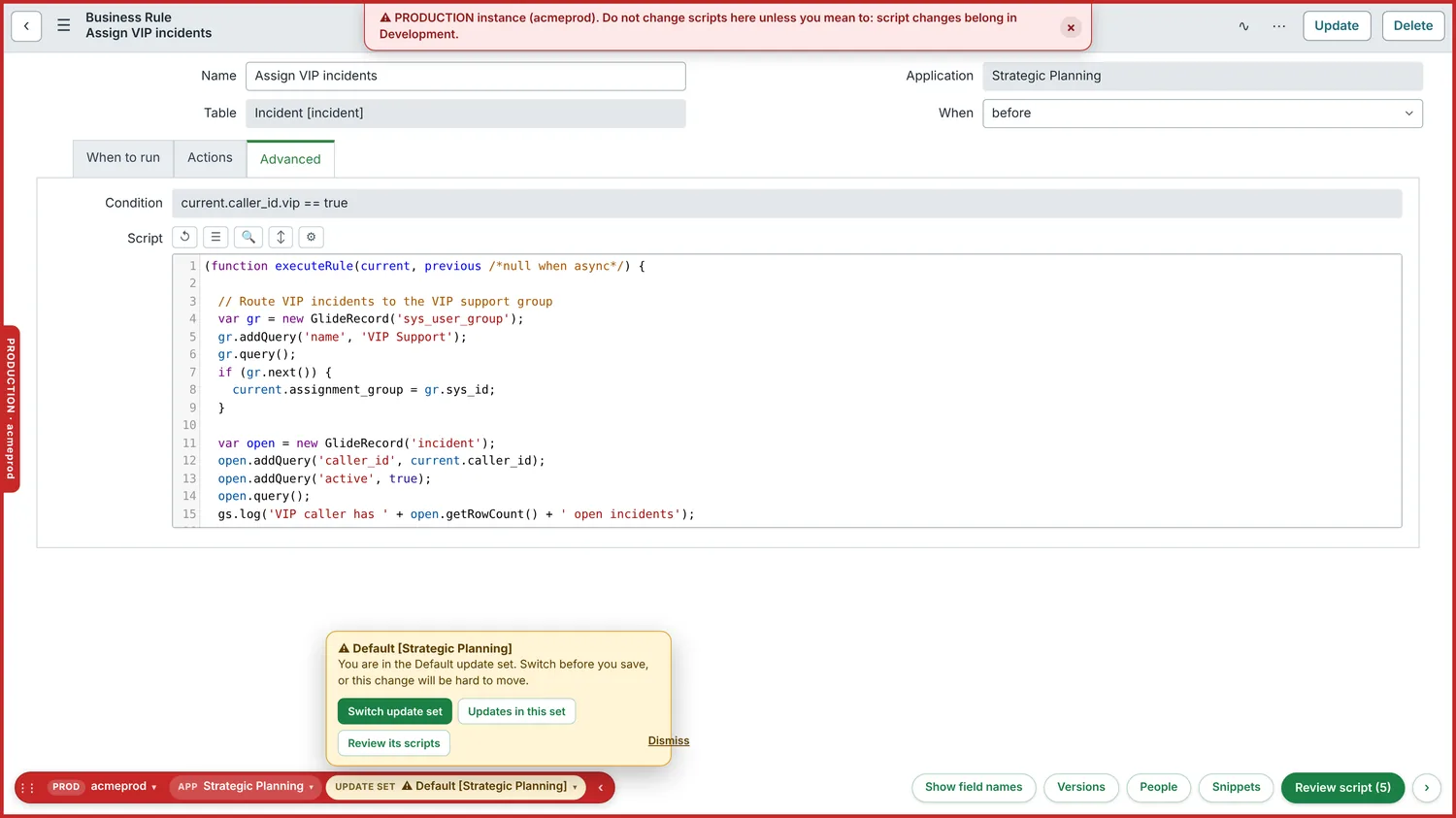
Green means development. The frame around this page, the label on the left edge and the bar all take the colour of the environment, so you never have to check the address.
Press Ctrl K, or the key before 1, on any ServiceNow page. Type a table, a record number, a script name or a command.
priority=1 or assigned_to=me. One-click filters for active, today and mine. Copy the finished query.br, si, cs or flow and a few words to search that type by name or by code, with the matching line shown.{table}, {sys_id} and {instance} filled in from the page you are on.Script review reads your code against ServiceNow best practice and against your own instance: its tables, its fields and its Script Includes.
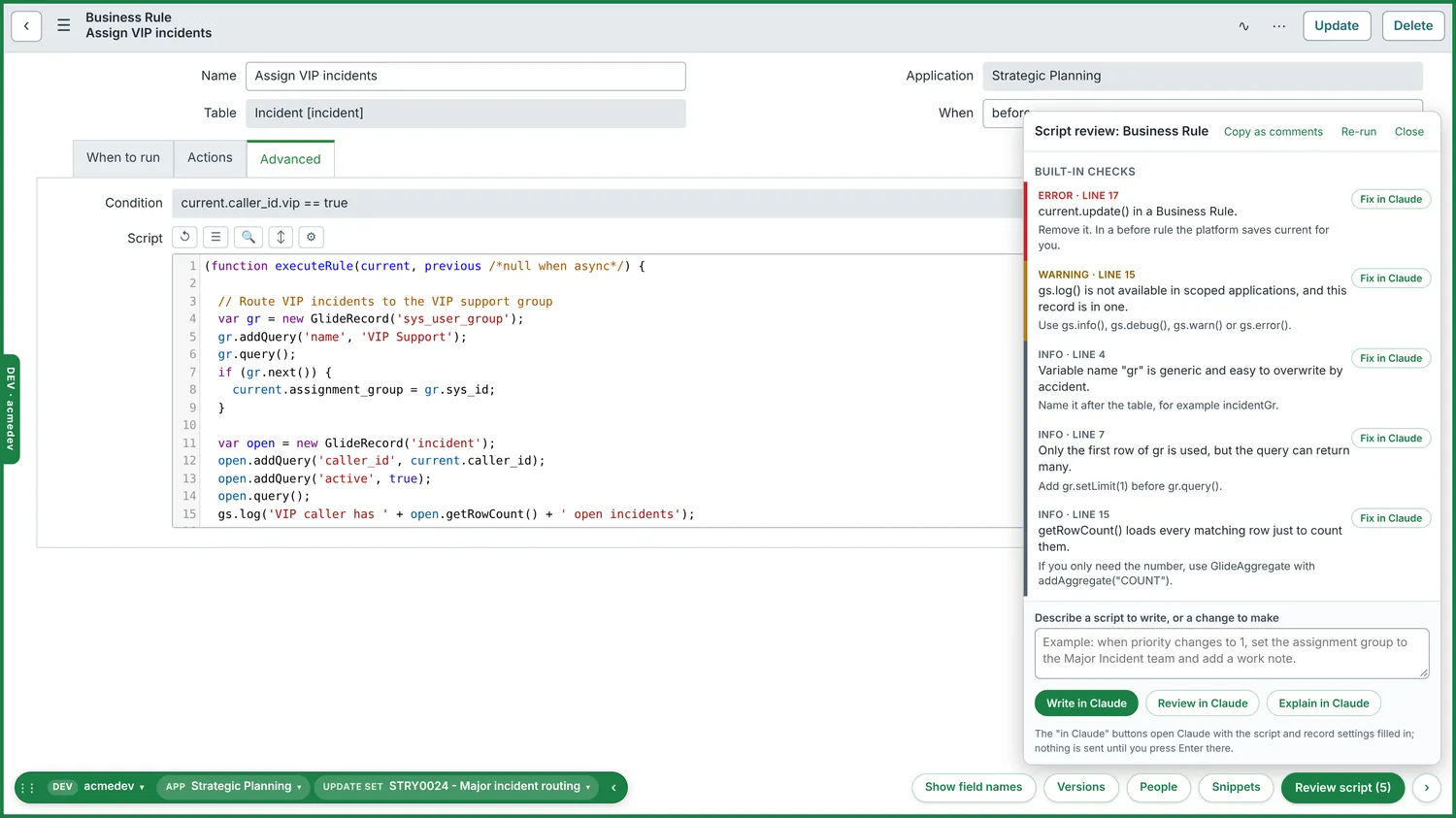
current.update() in a business rule, gs.log in a scoped app, queries with no limit, deprecated APIs.current.caller_id.manager.emial, each with a suggestion.AssetUtil.creatAsset() is checked against the real Script Include, inherited methods included.A real editor in the palette. It checks as you type and takes the table of current so fields are checked too.
The script in the editor against QA, production or any saved version, line by line. Put an older version back in one click.
What the script on screen logged and the errors that name it, from the last 15 minutes to 7 days.
Client scripts, UI policies, business rules, flows and notifications, in the order ServiceNow runs them.
Ctrl Shift Space inserts one of 30 built-in snippets or your own, in any script field.
When a page keeps waiting, a small notice offers to cancel your running transaction.
Most painful ServiceNow mistakes are work captured in the wrong place. The bar shows where your work goes and lets you change it without leaving the page.
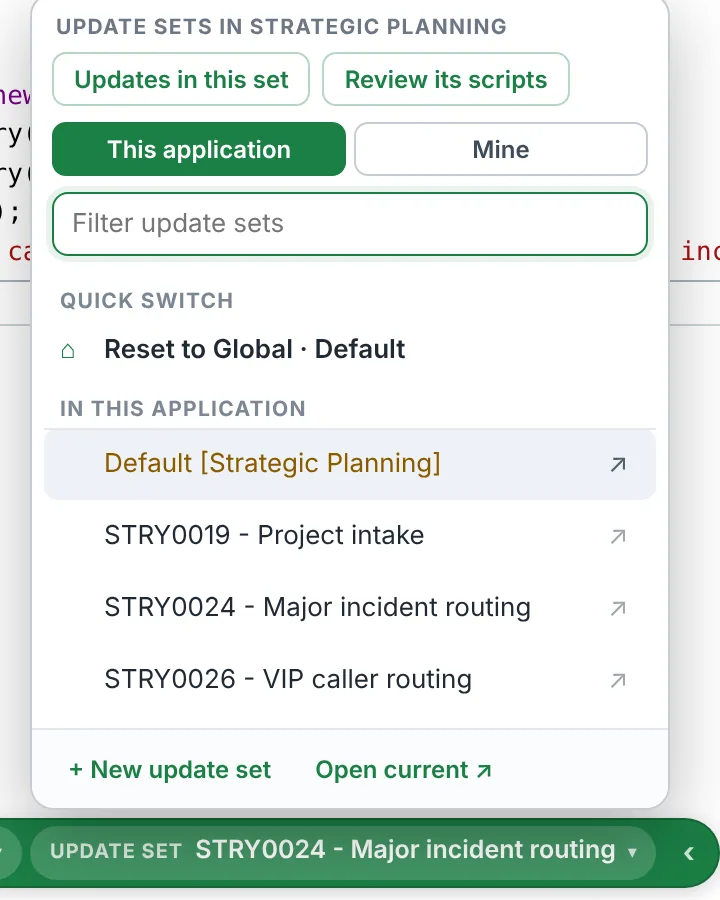
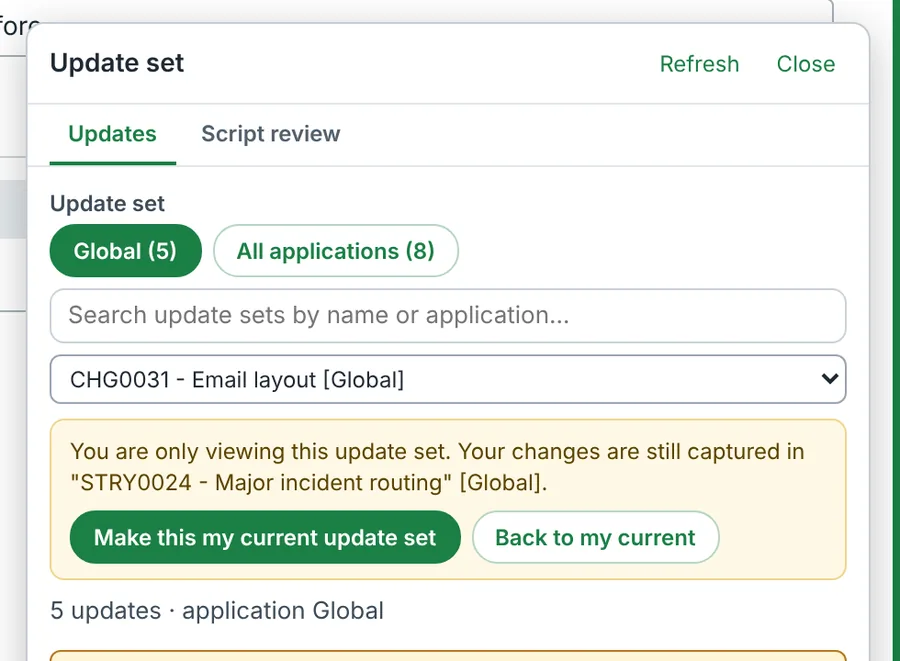
Colour does most of the work. The rest is a few well-placed questions and one switch that makes the extension read-only where it matters.
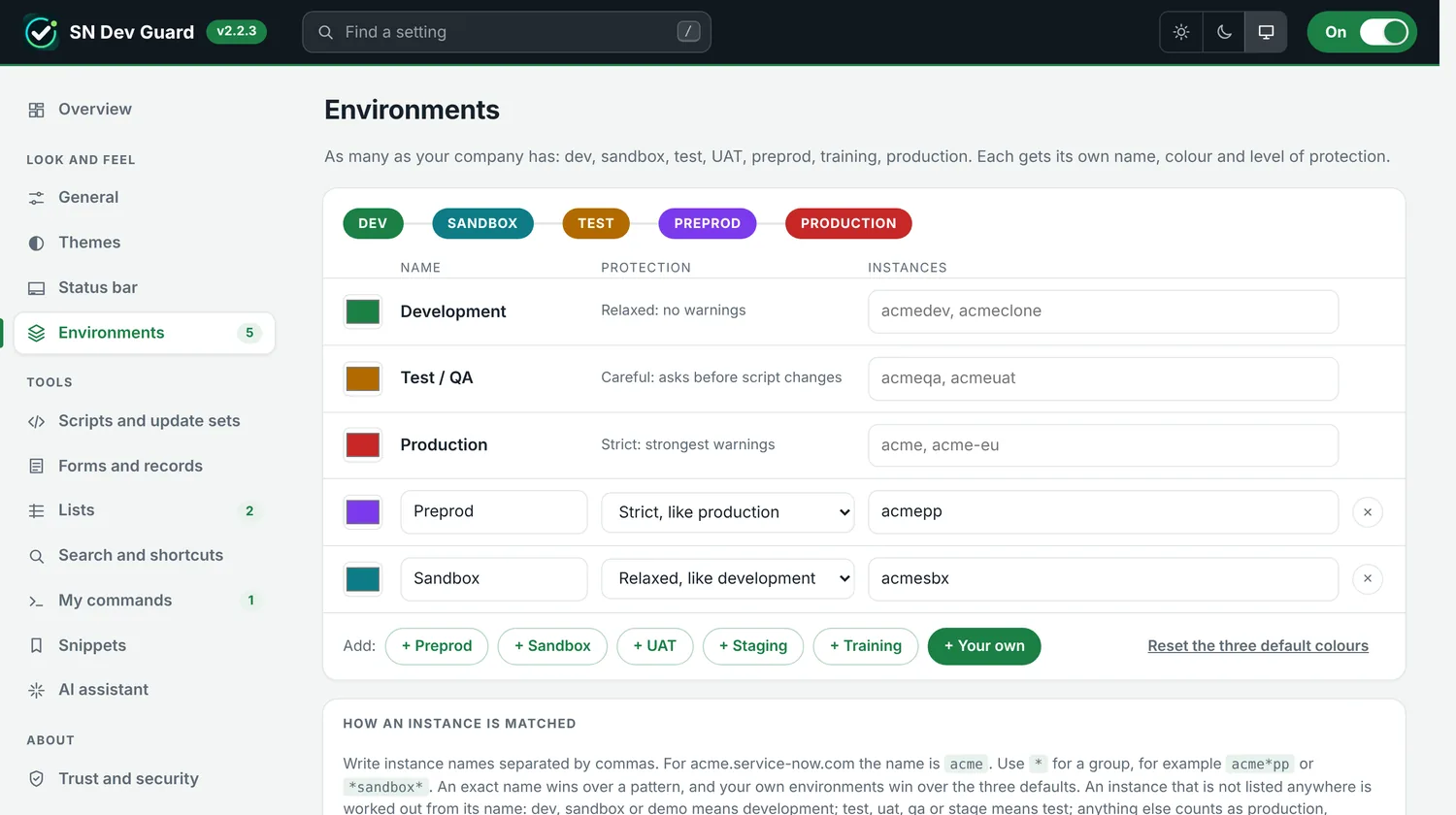
Development, test and production are built in. Add preprod, sandbox or UAT, each with its colour and level of protection.
On production and QA, saving or deleting a script asks first. The banner turns urgent when you start to edit.
Optional. The extension then makes no change of its own there: no switching, no moving updates, no elevating.
Small tools on every form and list, for the questions you ask twenty times a day.
caller_id.name to any classic list. Nothing is saved in ServiceNow.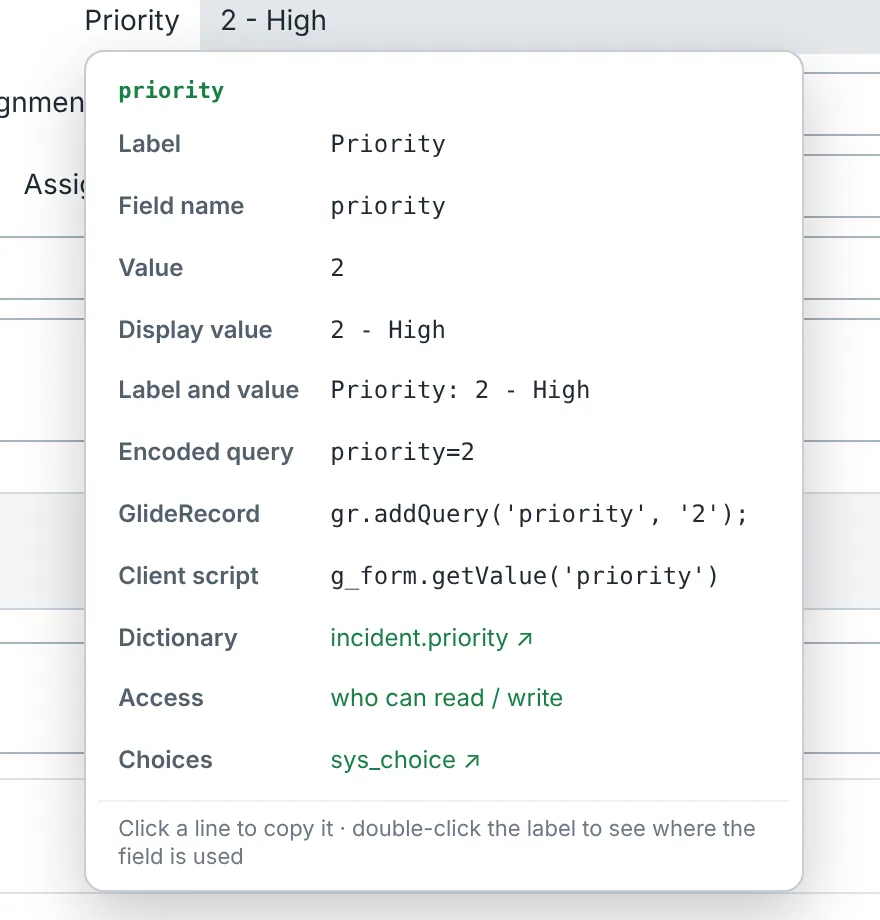

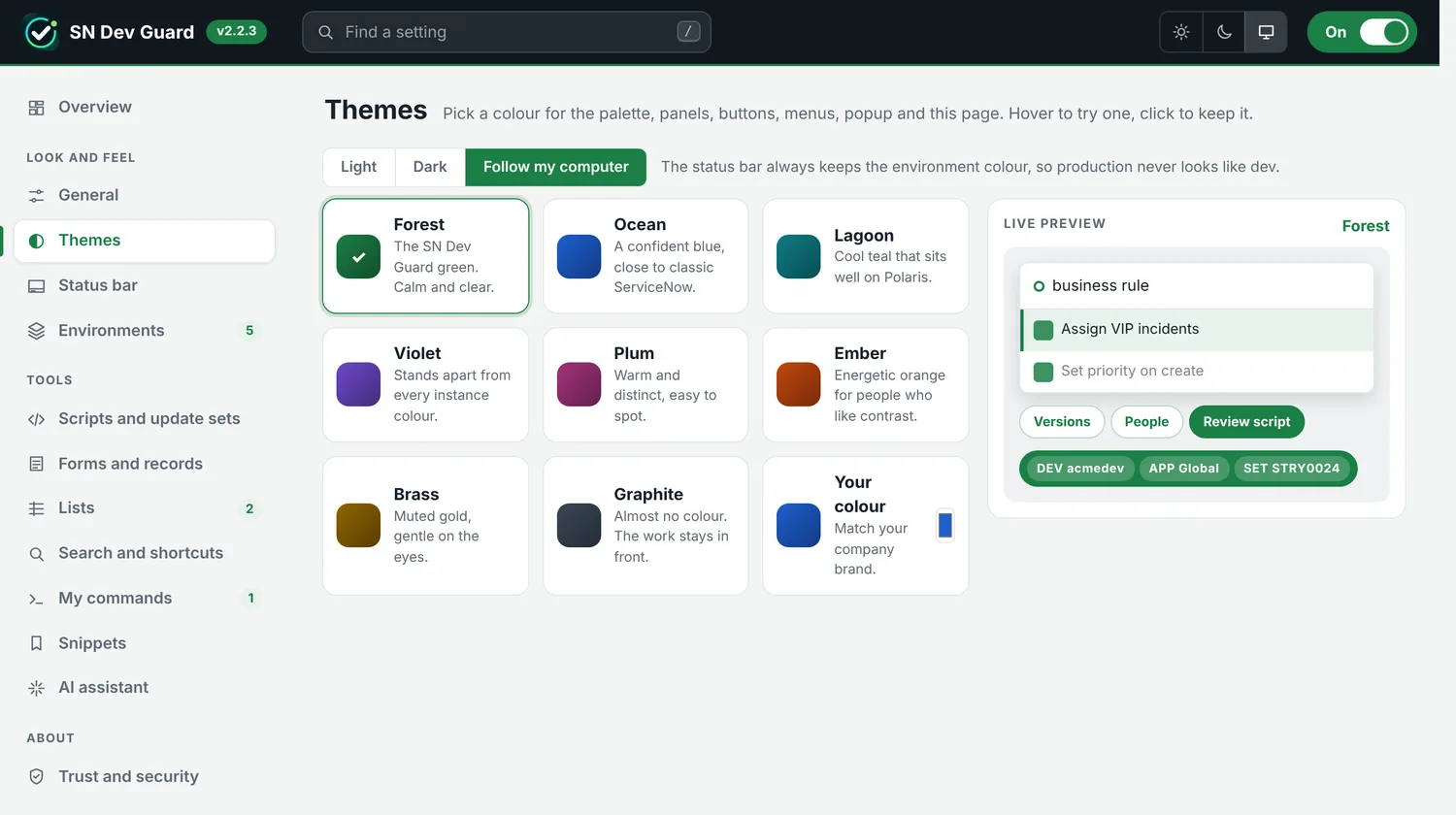
One settings page, built to be read: every tool with its state, a search box, and live previews before you keep a change.
For you, and for the security team that will ask. SN Dev Guard has no server, so there is nowhere of ours for your data to go.
| Question | Answer |
|---|---|
| Where does it run? | In your browser, with your own ServiceNow session. Roles and access controls still decide what you can see and change. |
| What does it collect? | Nothing. No account, no analytics, no usage statistics, no crash reports. |
| Where does it work? | On service-now.com pages only. You can limit it to a list of instances. |
| When does code leave the browser? | Only when you press an AI button, and only to the assistant you chose. AI can be switched off, or kept away from production. |
| What does it install on the instance? | Nothing. No application, plugin, table or script. Remove the extension and the instance is as before. |
| Can IT control it? | Yes. The privacy controls can be set and locked for everyone through Chrome's managed policy. |
| Chrome permission | Why it is needed |
|---|---|
| storage | To keep your settings and snippets. |
| activeTab | So the toolbar panel works with the ServiceNow tab you are looking at, and no other. |
| scripting | So the toolbar panel can read which user and instance that tab shows. |
SN Dev Guard is made by an independent developer. It is not made, endorsed, certified or supported by ServiceNow, Inc. Your company's own rules decide whether browser extensions may be used on its instances.
Everything is reachable with the mouse. These are faster.
| Key | What it does |
|---|---|
| Ctrl K or Cmd K | Opens the command palette on any ServiceNow page. |
| ~ on Windows, § on Mac | Opens the palette with one key. |
| Tab | Searches inside the selected command, or filters the selected table. |
| Ctrl Shift K | People search: users, groups and roles. |
| Ctrl Shift Space | Inserts a snippet in a script field. |
| Ctrl S | Saves the record and keeps you on it. |
Short answers to what people ask first.
No. It is an independent tool, not made, endorsed or supported by ServiceNow, Inc. Questions about it go to its author, not to ServiceNow support.
It is free. There is no account and no licence check. The AI buttons open the assistant you already use; an API key is optional and is billed by its provider, not by SN Dev Guard.
By default only users with the admin role. You choose the roles in the settings, and one switch turns everything off.
Yes. The status bar, the palette and the update set tools work in the classic interface and in the Next Experience. A few tools, such as extra list columns, are for classic lists.
Only when you click: switching an update set, moving an update, creating an update set. Everything else is reading. With read-only on production turned on, it makes no change of its own on production.
It stays in your browser. Settings are kept in Chrome storage; nothing is sent to a server of ours, because there is none. An optional activity log is off unless you turn it on, and stays on your computer.
Remove the extension in Chrome. Nothing was installed on your instance, so nothing is left behind there.
Install it, open a ServiceNow page and press Ctrl K. The first thing you will see is the status bar at the bottom left.
Add to Chrome, free